


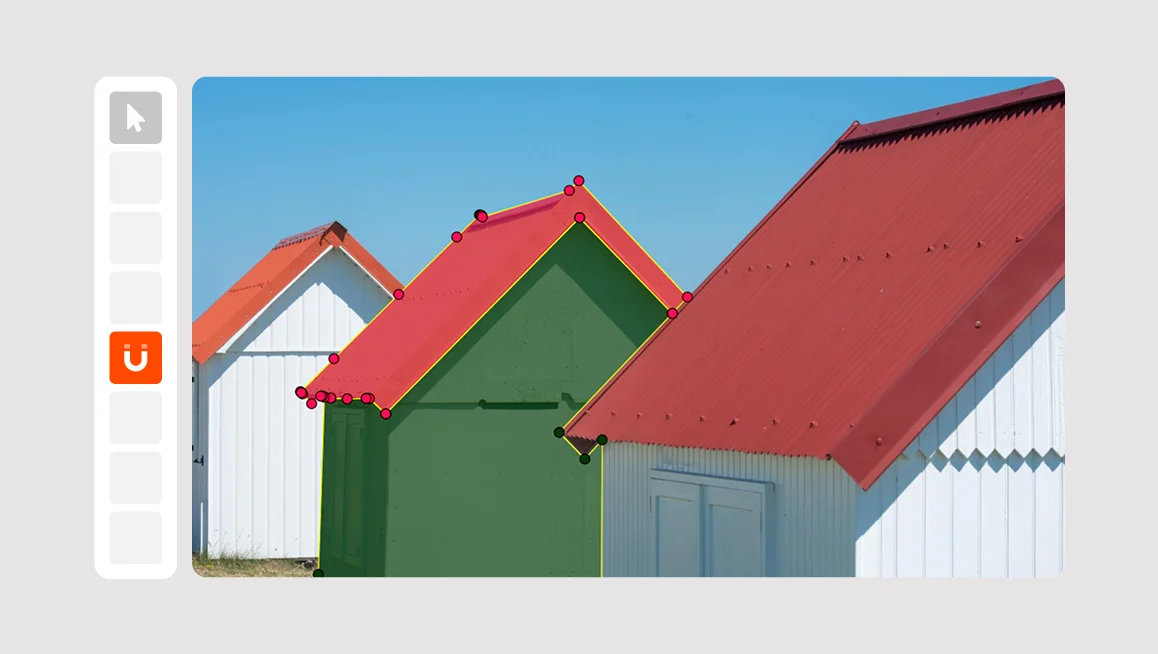
Precise polygon labeling is only as fast as the tools behind it. When annotating dense scenes where objects share edges — buildings, road markings, land parcels, medical regions — even small misalignments between adjacent polygons create downstream problems: gaps, overlaps, and manual correction work that slows everything down.
In our latest release, we've introduced two new snapping modes and extended the Join tool to support polygons, giving annotators a clean, efficient way to draw, align, and merge polygon shapes with accuracy.
#1 Snap to Contour
Previously available as Automatic Borders in Workspace Settings, this feature has been fully redesigned and moved to the Tools menu under the new Snap tool (look for the U-shaped magnet icon under the Tag label).
Snap to Contour lets you draw a new (or edit an existing) polygon that shares an exact edge with another polygon. To use it, activate the mode via Ctrl+A, place your first point and last point on the boundary of an existing polygon — CVAT will automatically trace the contour between them and align your new polygon's edge to it. If CVAT selects the wrong route along the boundary, simply add an intermediate point to steer it toward the correct side of the shape.
The result is a polygon whose shared edge aligns perfectly with its neighbor — no manual nudging required. This works across any number of shared points and is especially useful when labeling tightly packed regions where boundaries need to match precisely.
#2 Snap to Point
Also part of the new Snap tool, Snap to Point works at the vertex level rather than the edge level. To use it, activate the mode via Ctrl+P, pick a point on one polygon, and it automatically snaps to the nearest point on an adjacent polygon. Where Snap to Contour handles full shared edges, Snap to Point is the right tool when you just need to close a gap or align two shapes at a specific corner.
Together, the two modes cover the most common alignment scenarios in dense polygon annotation workflows.
#3 Polygon Merge via Join Tool
The natural next step after precise alignment is merging. The Join tool has long supported mask merging — it now works for polygons as well. Select two overlapping polygons, press J, and they merge into a single unified shape.
A few things to keep in mind: in order to be merged, the polygons must touch or overlap each other, and have the same label/class which will be applied to the new, merged polygon. Self-intersecting polygons are also not supported.
These three features work together as a cohesive workflow: use Snap to Contour or Snap to Point to align adjacent polygons accurately, then use the Join tool to merge them when needed. For annotation tasks involving shared boundaries — whether in satellite imagery, medical imaging, or urban scene segmentation — this combination significantly reduces manual correction and improves label consistency.
These updates are available across all CVAT editions: CVAT Online, Enterprise, and Community.
Have feedback or suggestions?
We'd love to hear from you! Contact our team via HelpDesk or submit an issue on GitHub.


.svg)
.png)

.png)





.png)