


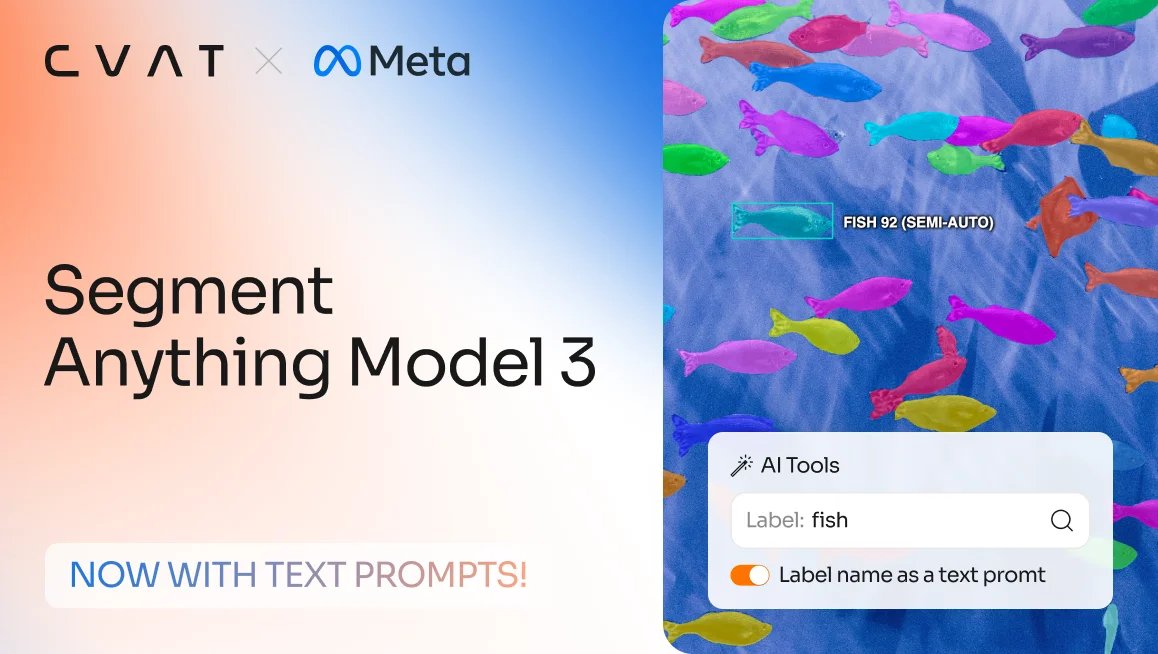
Note: This is the second part of our three-step SAM 3 integration in CVAT. In Part 1, we introduced visual-prompt segmentation with clicks and boxes. Now, we’re extending that workflow with label-based text prompts. In CVAT Online Free tier, SAM 3 remains available in demo mode for evaluation. For regular production use, SAM 3 is available in CVAT Online paid plans and CVAT Enterprise.
We’re excited to introduce the next step in our SAM 3 integration: automated image segmentation with label-based text prompts. 🔥🔥🔥
With this update, you can now use the labels you already defined during project or task setup as textual prompts for automated image segmentation with SAM 3.
Instead of segmenting one object at a time with repeated clicks, you can now choose a class, click one example object, and let the model find other matching instances in the same image.
What are text prompts in CVAT?
In SAM 3, a text prompt is a short text phrase that describes the concept you want the model to find. Meta describes SAM 3 as an open-vocabulary model that can segment all instances of a concept specified by a short text phrase, and gives examples such as “yellow school bus” and “a player in white.”
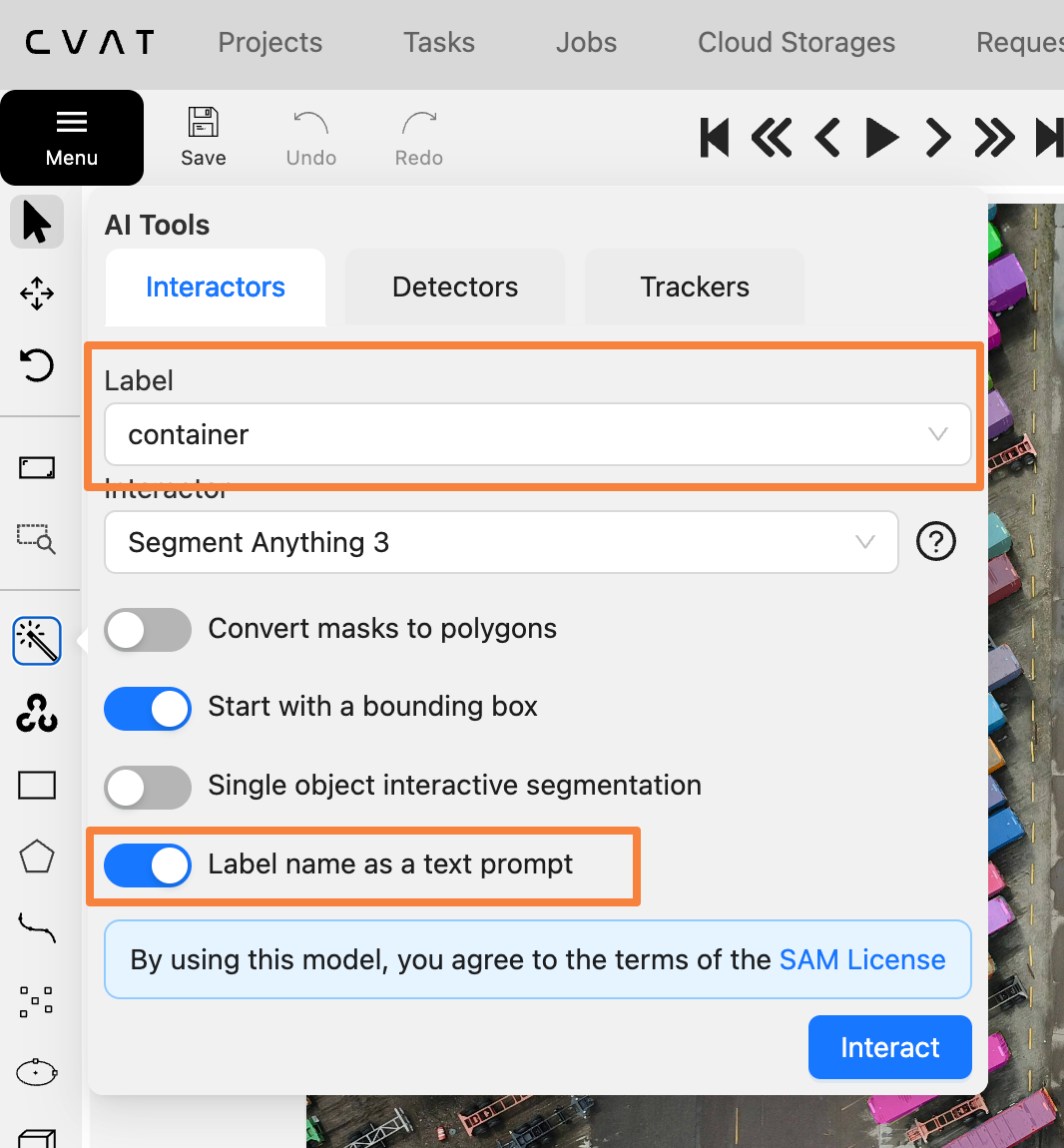
In CVAT, that text prompt comes from the label name you already define in your project or task. When you enable text-prompt labeling, CVAT uses the selected label as the textual signal for the model. Then, after you click one example object, SAM 3 combines that label with the visual example to find and segment other matching objects in the same image.
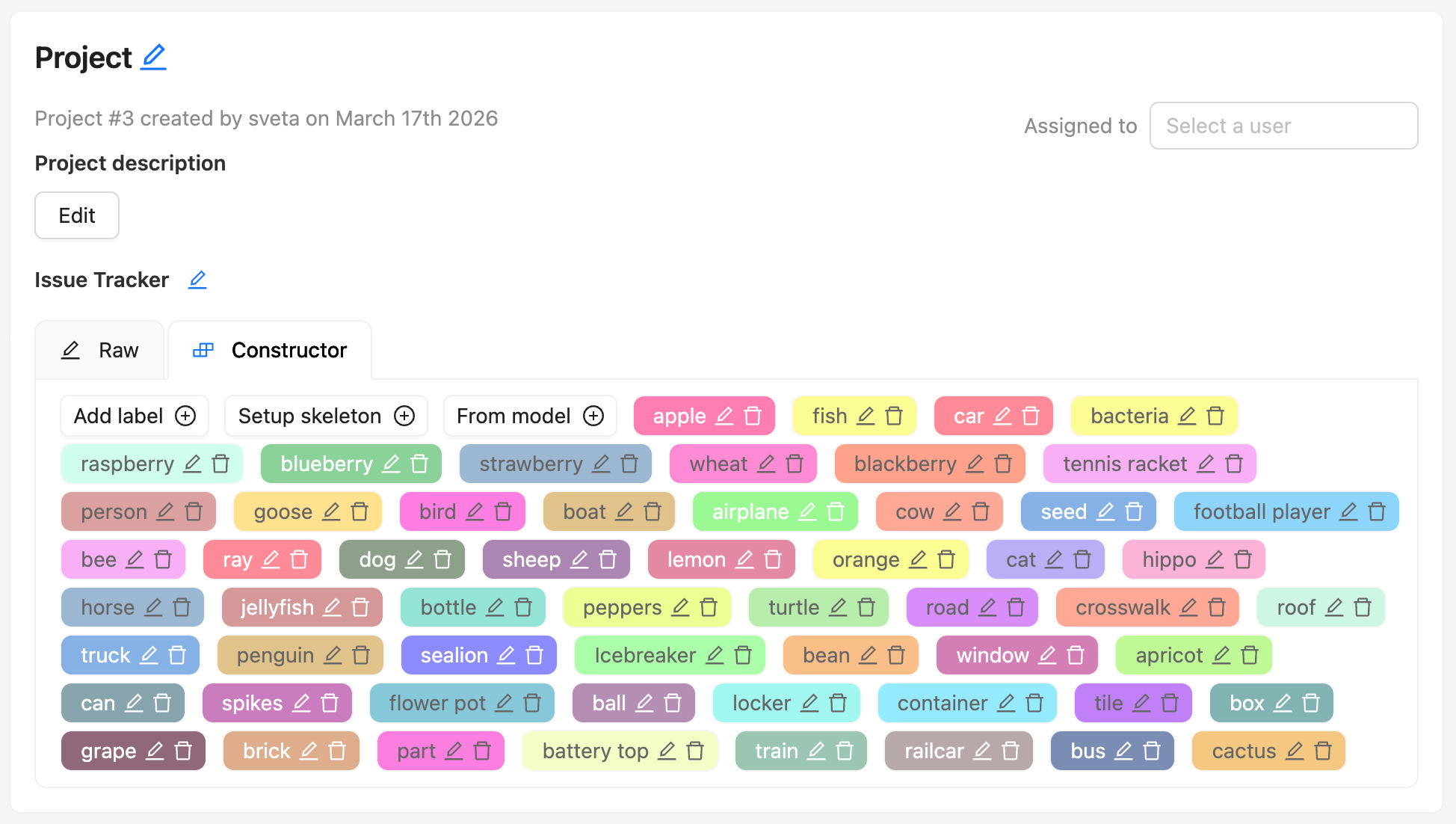
So in practice, a text prompt in CVAT is not just “some text.” It is part of your annotation schema. If your label is called “container”, CVAT uses that label to guide the model toward containers. If your label is a “bottle”, the model uses that class name together with the clicked example to search for other bottles in the frame.
This makes the workflow more structured and more useful for real annotation projects, because it relies on labels you already use and need for your dataset.
Text prompts work best as short, concrete label names or noun phrases. Labels like apple, red apple, or plastic bottle are a better fit than long descriptive sentences.
Meta’s public SAM 3 materials use English examples, and the official Hugging Face model card is tagged English. We did not find an official Meta statement confirming multilingual prompt support in the sources reviewed, so the safest recommendation for CVAT users is to use short English label names or noun phrases.
From object-by-object to class-by-class automated segmentation
This update moves the labeling workflow in CVAT from object-by-object interaction closer to class-first segmentation. Instead of labeling every object separately, annotators can now guide the model with two signals at once:
- the label name that defines the target class
- a visual example that shows what that class looks like in the image
What does it mean to your workflow? In practice, this can reduce repetitive manual work for datasets with dozens of objects of the same class or several classes per frame.
For example, if you need to label dozens of similar products on store shelves, such as rows of bottled drinks, snack packs, or fruits, instead of segmenting each item one by one, you can select the target product label, click one example object, and let SAM 3 find other matching instances across the shelf. And then, do the same for other product categories.
This lets you and your annotation team do a faster first pass that can then be reviewed and corrected as needed.
When to use label-based text prompts (and when not)
Like other prompt-based models, SAM 3 performs better on some datasets than others.
You’ll likely get the best results when:
- the image contains multiple instances of the same class
- the objects are reasonably well separated
- the image has enough detail for accurate mask generation
- scenes are not too crowded

Performance may be less reliable when:
- images are low resolution
- object boundaries are blurry or ambiguous
- scenes are very crowded
- many objects overlap or touch closely
- visually similar classes are easy to confuse

In those cases, the model may miss objects, generate rough masks, or confuse nearby categories, such as similar animals, fish species, or tightly packed objects.
In addition, at the moment the model can label up to 200 objects per frame, so performance and output volume are best when the scene is not overly dense.
How it works
To try label-based text prompts with SAM 3 in CVAT:
- Create an image segmentation task or open an existing task with pre-defined labels.
- Open a job in the annotation editor.
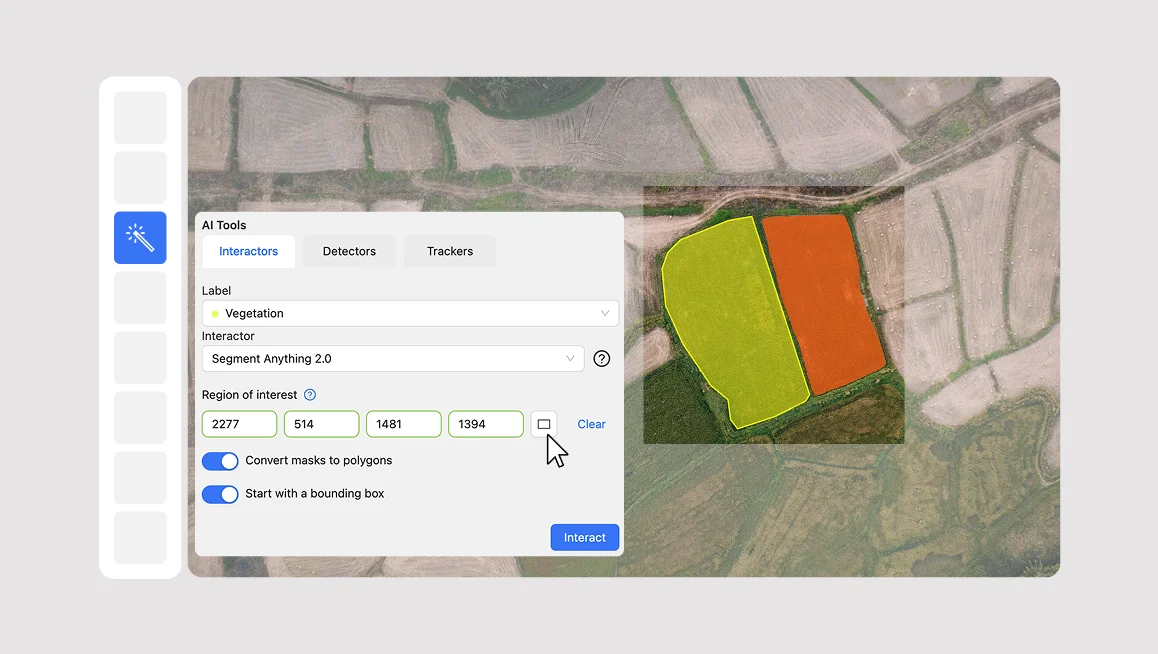
- In the right panel, go to AI tools.
- Select the target label.
- Choose Segment Anything Model 3.
- Turn on Label name as text prompt.
- Click Interact and select one example object.
- Review the generated masks and adjust the confidence threshold if needed.
Note: You can move the confidence threshold slider to make predictions more or less selective for your dataset. This helps you control how accurately the model matches objects in the image and see which setting works best for your use case.
What’s next
This update is another step toward leveraging SAM 3’s powerful capabilities for real annotation workflows in CVAT.
Part 1 introduced interactive segmentation with visual prompts. Part 2 adds label-based text prompts for smarter class-guided pre-labeling. Part 3 will bring advanced video object tracking built on SAM 3’s tracking capabilities, expanding the integration further for video annotation workflows. However, if you’d like to automate your video tracking tasks, you can do so already with SAM 2 in CVAT Online, Team plan, and CVAT Enterprise.
Ready to speed up your image labeling tasks with SAM 3 and text prompts? Sign in to your CVAT Online account to test label-based text prompts on your own data, or contact us if you’d like to use it in CVAT Enterprise.



.svg)
.png)

.png)




.png)