


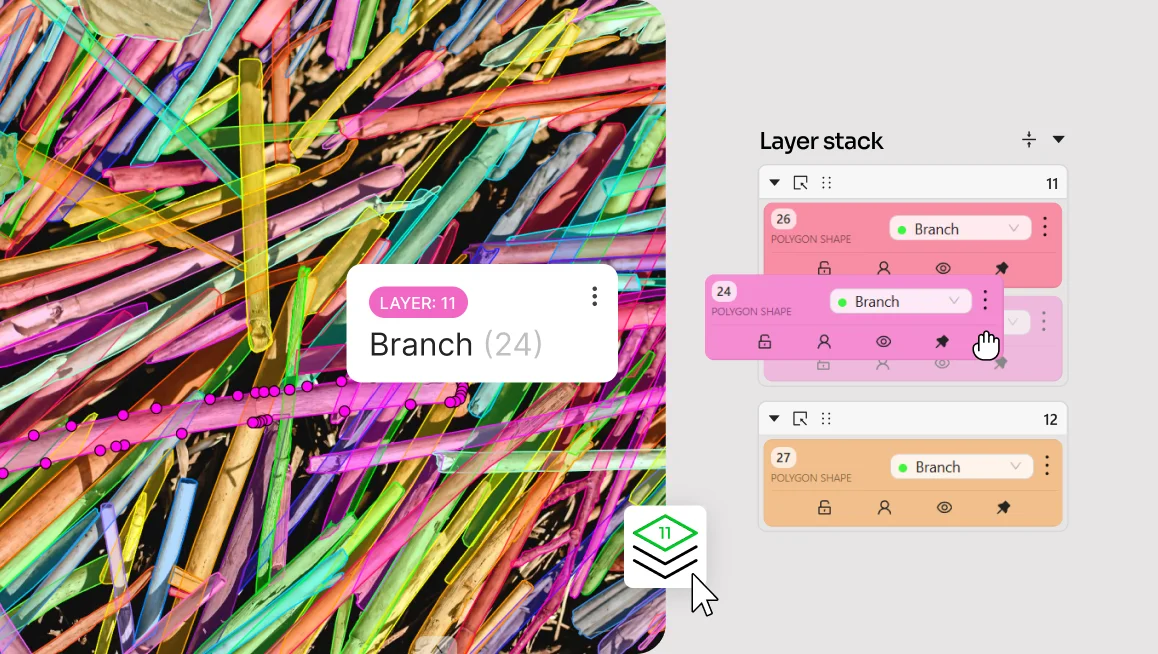
Real-world datasets used to train vision AI rarely look like perfectly staged photos, videos, or 3D environments. They capture complex, dense scenes where many objects appear close together, overlap, or partially hide one another: a crowded street scene, a closed-canopy forest captured by drone, or a plant cell micrograph.
In these scenarios, annotation layers are more than a visualization aid. They help represent object depth, preserve occlusion relationships, and maintain a consistent hierarchy within complex scenes. In many projects, layer order becomes part of the annotation itself, providing important context about how objects relate to one another in the scene.
As annotation complexity grows, managing these relationships can become increasingly difficult. Selecting, reviewing, and organizing overlapping objects often requires repetitive manual adjustments, slowing down both annotation and quality assurance workflows.
To eliminate this friction, we have completely overhauled CVAT’s layer workflows to give you total control over dense annotation layouts.
What’s new with layers?
While CVAT has always supported layers, we have upgraded this functionality into a central workspace hub to help you organize annotations and control their visual order on the canvas.
Instead of wrestling with overlapping annotations through tedious, one-by-one forward/backward clicks, you can now manage them through an intuitive Layer stack view in the Objects sidebar.
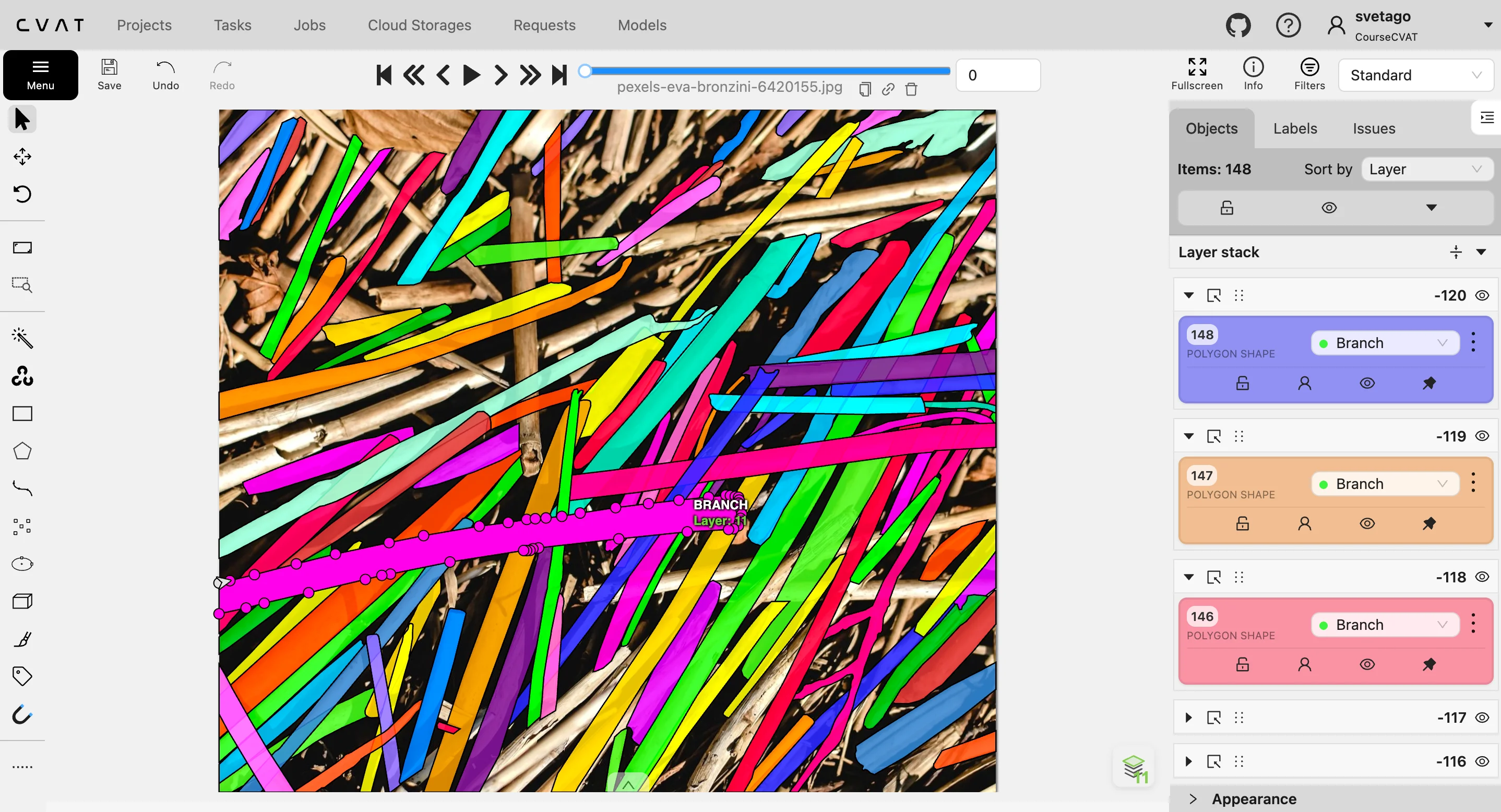
- Sort and group annotations by layer in the sidebar through drag and drop or move them to a specific layer through the “Move to layer…” option in the action menu.
- View the full layer stack and the current layer for newly created annotations by clicking the “Open layer stack” button on the canvas.
- View layer numbers both in the sidebar and in object details on the canvas and use them in annotation filters to narrow down what you see on the canvas.
- Move layers up or down, insert new layers between existing ones while preserving the order, or merge them together.
- Renumber sparse layer stacks from zero while keeping the visual order.
- Expand and collapse layers to keep complex annotation tasks easier to navigate.
- Click an annotation and have CVAT automatically open the relevant layer and highlight it in the sidebar.
- Undo layer operations, including bulk movements and compacting.
How to organize annotations with layers
To start organizing annotations by layers, go to the Objects sidebar and choose Layer in the Sort by dropdown, or click on the Open layer stack button in the right corner of the canvas.
Once activated, the Layer stack panel displays annotations grouped by their specific canvas layer.
New annotations are created on the current layer — the layer explicitly selected in the stack. If no layer is selected, CVAT uses the highest-numbered layer on the current frame.
To create a new layer, drag an annotation above or below an existing layer in the list. You can also use the existing layer actions to move annotations one layer at a time, send them directly to the front or back, or move an annotation to a specific layer by entering the layer number from the annotation card menu.
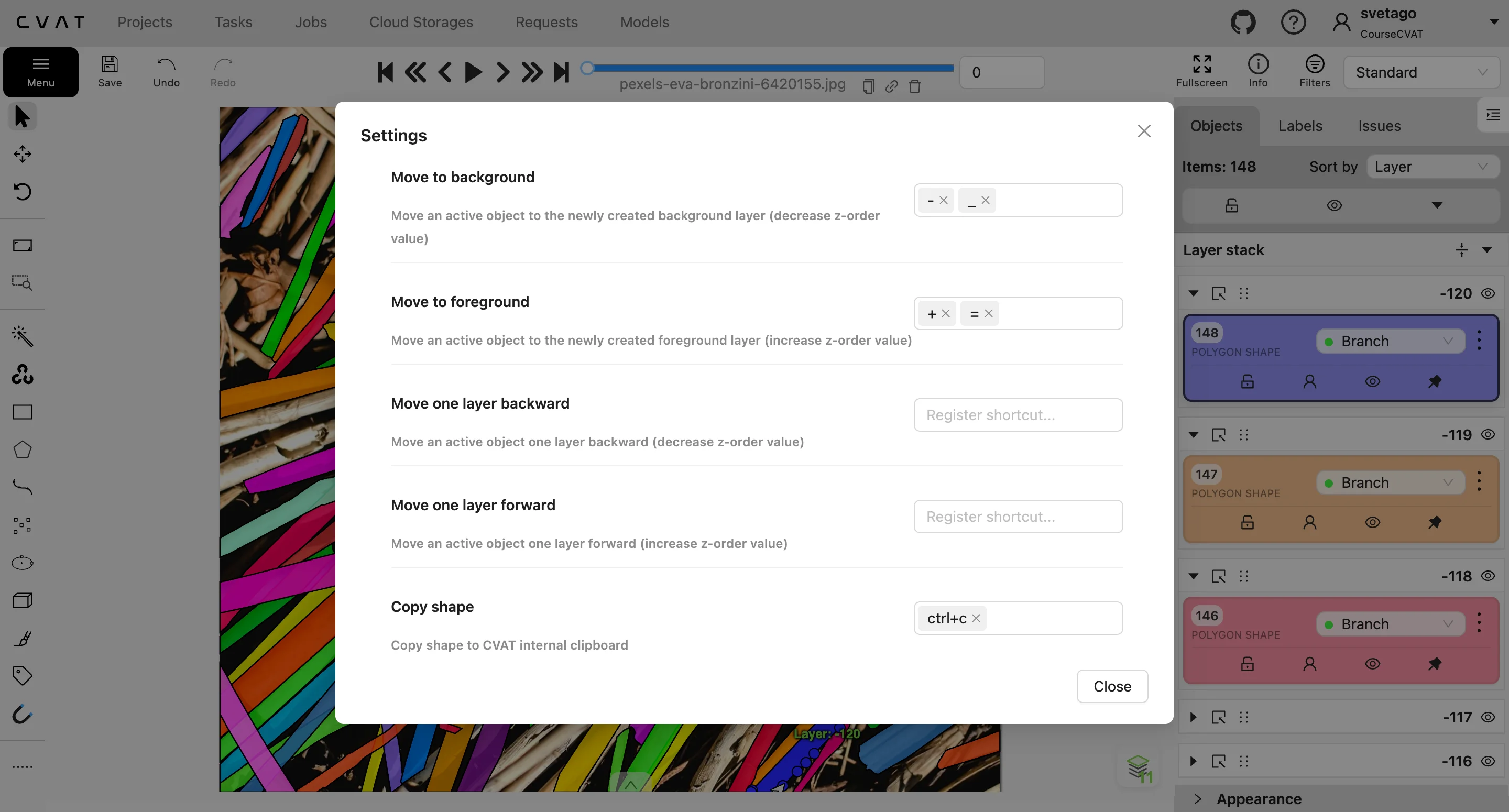
For faster access, set up custom shortcut presets in Settings.
Once your annotations are grouped into layers, you can move annotations between layers, move layers above or below one another, and merge several layers into one.
Filtering annotations by layer
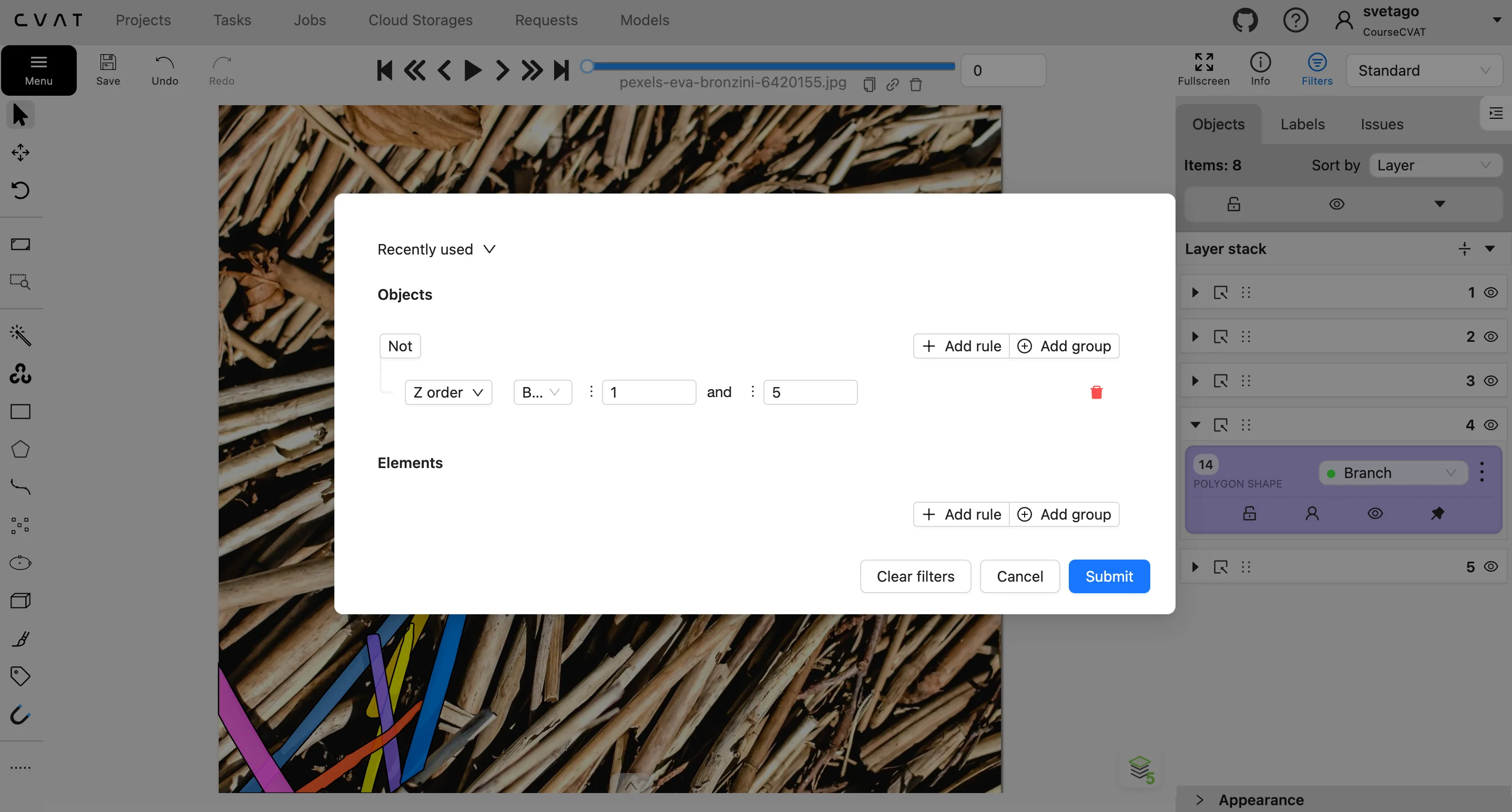
When a single frame contains dozens of overlapping shapes, QA and validation can get messy. You can now declutter your workspace in two ways:
- Hide layers directly from the Layer stack panel.
- Filter annotations by specific layer number.
Layer data is also visible in the Object details directly on the canvas, ensuring you always know exactly where an object sits in the stack while you work.
Try new layer controls in CVAT today
This update makes annotation projects with dense, overlapping scenes easier to work with by helping you find, select, and arrange annotations when objects overlap or partially hide one another.
Try layers in CVAT Online, Enterprise, or Community edition, and let us know what you think.


.svg)
.png)

.png)




.png)