


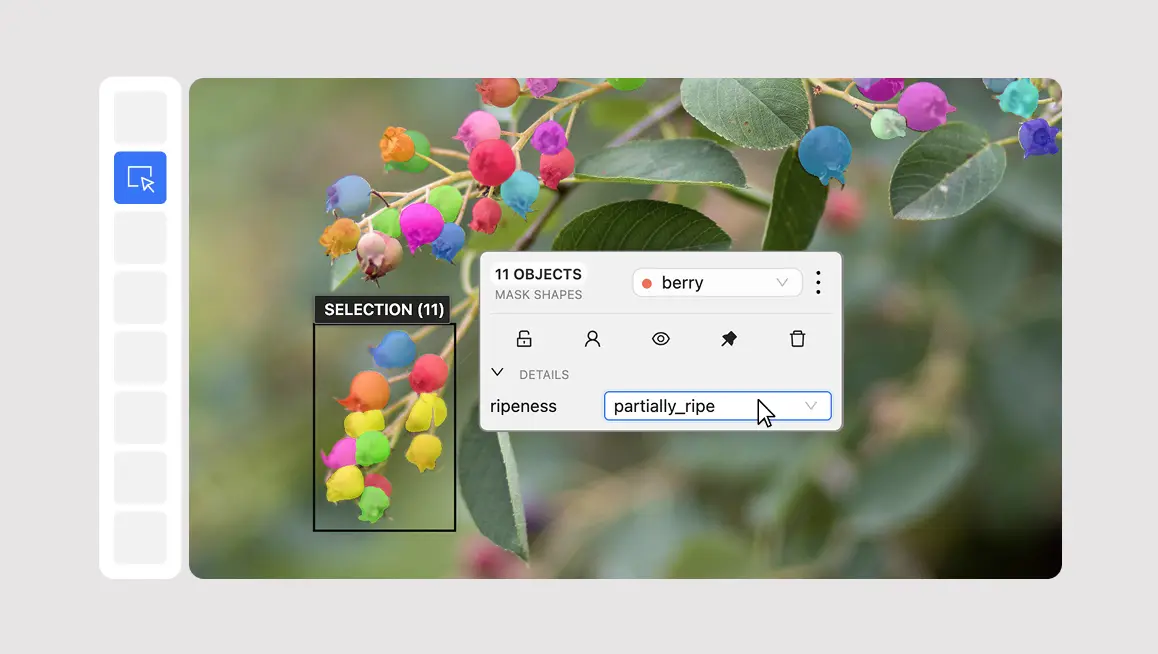
When annotating images or videos, you often need to make the same change to several objects. You might need to correct labels across multiple annotations, remove unwanted detections after automatic annotation, move related objects together, or reuse annotations on similar video frames.
Previously, these operations required editing objects individually. With multi-object selection in CVAT, you can select several annotations in the 2D workspace and perform supported operations on the entire selection.
The feature supports multiple ways to select objects, along with batch editing, copying and pasting, grouping, and layer management.
Select multiple objects on the canvas
You can select objects directly on the canvas using a rectangular selection area.
Choose Select objects from the toolbar, then click and drag across the area containing the annotations you want to select. CVAT selects the objects fully enclosed by the rectangle and displays a bounding box around the selection.
You can also use Shift + drag while in Cursor mode to start a rectangular selection without switching tools manually.
To build a selection object by object, hold Ctrl (Windows/Linux) or Command (macOS) and click individual annotations. Repeat the action to remove an object from the selection.
These methods are useful when you need to edit annotations located close together or select specific objects without affecting the rest of the frame.
Select objects from the sidebar
Video for embedding:
Multi-object selection also works through the Objects sidebar, which can be more convenient when annotations overlap or are difficult to select directly on the canvas.
You can:
- Use Ctrl/Command + click to add or remove individual objects from a selection.
- Use Shift + click to select a continuous range of objects in the Objects tab.
- Press Ctrl/Command + A to select all selectable objects visible on the canvas.
- Select objects by label from the Labels tab.
- Select objects belonging to a particular layer in the Layer Stack.
For example, if a frame contains many annotations assigned the same label, you can select them through the Labels tab rather than locating each object on the canvas.
Move and edit several annotations together
Once you've selected multiple objects, you can move them as a set by dragging the selection.
CVAT preserves the relative positions of the objects during movement. This is useful when annotations represent related parts of a larger structure, such as components of a vehicle or features of an object that need to be repositioned together.
Locked and pinned objects remain in place.
You can also apply several editing operations to the selection:
Change labels. Assign a new label to multiple annotations at once. CVAT displays only labels compatible with every selected object, helping prevent invalid assignments.
Update attributes. If the selected objects share the same label, you can change their common attributes together. For example, you can update an attribute value across several instances without opening each annotation separately.
Delete annotations. Remove multiple unwanted annotations in one operation. This can be particularly useful when reviewing automatically generated annotations and removing false detections.
Lock, pin, hide, or mark objects as occluded. Apply these states to multiple annotations through the selection controls or keyboard shortcuts.
Supported batch edits work with Undo and Redo, allowing you to reverse changes without manually restoring each object.
Copy and paste multiple annotations
Multi-object selection also supports copying and pasting several annotations together.
After selecting the objects, use Ctrl/Command + C to copy them and Ctrl/Command + V to paste them. CVAT displays a preview of the copied annotations so you can position them before confirming.
The copied objects preserve their relative geometry, labels, attributes, and supported grouping information.
This is particularly helpful when working with similar images or consecutive video frames.
For example, if a frame contains several objects that appear in approximately the same positions in the next frame, you can copy their annotations together, paste them onto the next frame, and adjust their positions as needed.
You can also use the selection action menu to access compatible annotation actions, including operations for working with annotations across frames.
Group objects and manage their layer order
Selected annotations can also be organized together.
Use Group selection to place multiple objects into a group, or Ungroup selection to remove them from existing groups.
Grouping is separate from multi-object selection: you can temporarily select objects to edit them together without creating a permanent group.
You can also change the layer order of several selected annotations at once.
The available actions include:
- Move to foreground or background.
- Move one layer forward or backward.
- Move to a specified layer.
These operations are useful when working with overlapping annotations, where the display order affects which objects are visible and accessible on the canvas.
Review and manage a selection
CVAT displays the number of selected objects and provides a selection action menu with information about the object types included.
To open the menu, right-click the selection bounding box. The available controls depend on the selected objects and their states. Operations that cannot be applied to the entire selection are disabled or restricted as appropriate.
You can remove individual objects from the selection without starting over, or press Esc to clear it.
Some operations have additional restrictions for locked, pinned, or Ground Truth objects. CVAT preserves these restrictions when applying batch actions.
Availability and documentation
Multi-object selection was introduced in CVAT v2.78.0 for the 2D annotation workspace. CVAT v2.79.0 standardized the selection shortcuts, including Shift + drag and Ctrl/Command + click.
For a complete description of selection methods, keyboard shortcuts, supported operations, and restrictions, see the Multi-object selection documentation.



.svg)
.png)

.png)






.png)