


CVAT supports not only traditional manual data annotation, but also tools for automated and semi-automated labeling, which greatly simplify an annotator’s work. To enable this, CVAT offers a dedicated toolkit — AI Tools. This is a set of technologies for semi-automatic and fully automatic annotation of data directly in the editor interface. Its main goal is to make the process of creating datasets for computer vision model training faster and more efficient. With AI Tools, annotators can delegate tasks such as object detection in frames, mask generation, or video object tracking to a model.
Main AI Tool Types
AI Tools in CVAT are divided into three key categories:
Interactors
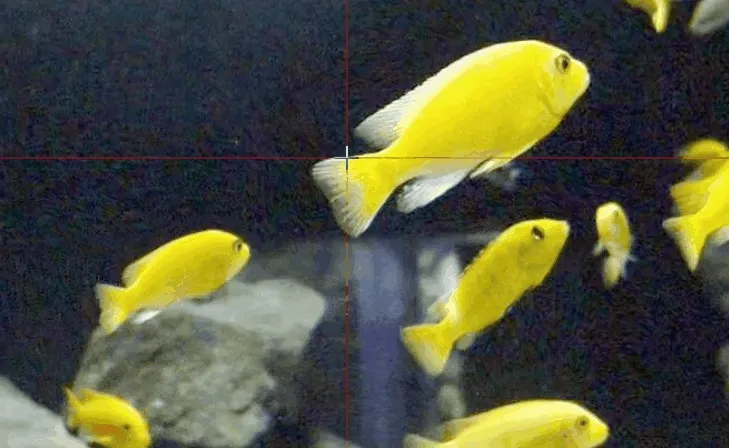
Interactors are semi-automatic annotation tools. They work in close collaboration with the annotator, who marks key points of an object (using Positive and Negative Points), while the neural network completes the mask or polygon.
Models used:
- SAM (Segment Anything Model) — a popular tool for creating masks or polygons around an object.
Best suited for: Cases where precise annotation of objects is required, but not by doing it completely from scratch.
Detectors

Detectors are tools for fully automated annotation. Integrated models automatically locate objects in a frame, define their boundaries (bounding boxes), and assign labels.
Models used:
- YOLO — a popular detector that automatically identifies object positions and classes.
- Human Pose Estimation — a model for automatic annotation of keypoints for human skeletons.
Best suited for: Large volumes of data where annotation needs to be done as quickly as possible, and an annotator only needs to review and fine-tune results.
Trackers

Trackers are tools for annotating objects across video frames. The annotator marks an object in the first frame, and the tracker automatically follows it across subsequent frames.
Models used:
- TransT — a tracker based on the Transformer architecture for stable multi-object tracking in video.
Best suited for: Creating datasets for training tracking models or annotating video quickly.
Popular Models for Semi-Automated Annotation
For Fully Automated Annotation (Detectors)
- Detectron2 (Facebook AI): A popular framework for object detection and segmentation.
- EfficientDet: A family of object detection models by Google, ideal for large-scale annotation.
- CenterNet: Used for keypoint detection and object localization.
- RetinaNet: A detector focused on challenging scenarios, such as a large number of small objects.
For Semi-automated Annotation (Interactors)
- RITM (Robust Interactive Segmentation Model): Enables mask generation via annotator clicks.
- F-BRS / DEXTR: Models that refine masks based on keypoints or a bounding box.
For Video Tracking
- DeepSORT: A popular multi-object tracker used extensively in computer vision for following a large number of objects.
- ByteTrack: A tracker that provides stable results, even with short occlusions.
Advantages of AI Tools
- Time efficiency: Speeds up annotation thanks to automatic or semi-automatic labeling.
- Better suited for large datasets: Increases efficiency when dealing with significant data volumes.
- Integrated workflow: Operates within CVAT itself — no external applications required.
- Flexibility: Enables a combination of tools for different annotation stages.
Disadvantages of AI Tools
- Not ideal for complex cases: Heavily overlapping or unclear objects, low image quality, or unusual angles can cause errors.
- Needs review and adjustment: Fully automatic annotation rarely delivers a perfect result — human verification is still required.
- Condition-sensitive: Accuracy depends on data quality (lighting, sharpness, object positioning).
- Not suitable for all data types: Highly specialized datasets may require training custom models.
Conclusion
AI Tools in CVAT provide a convenient and effective solution for creating computer vision datasets. They help annotators save time and effort but do not fully replace manual work. To achieve maximum precision, combining AI Tools with the annotator’s expertise is essential. When used correctly, AI Tools significantly streamline the annotation process, making it feasible to build high-quality datasets even for large and challenging projects.

.svg)





.svg)
.png)

.png)


