


Polygon Annotation
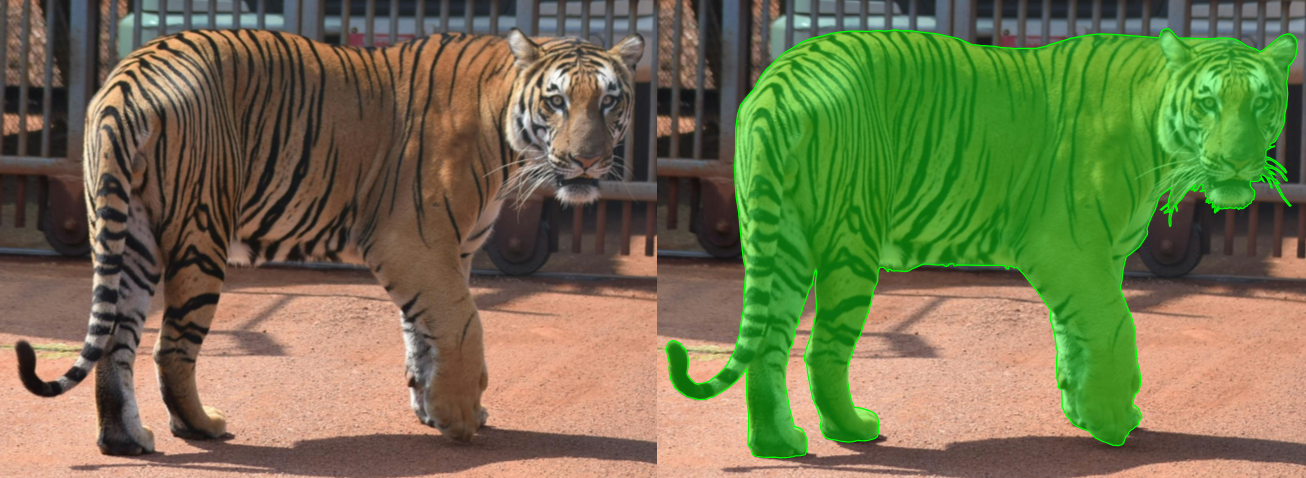
Polygon is an annotation tool used to create a closed polygon that outlines the contours of an object. Each vertex of the polygon is created manually, enabling precise delineation of the object’s shape, including its complex and irregular contours. A polygon consists of a sequence of points connected by lines, with the last point closing the contour.
Polyline Annotation
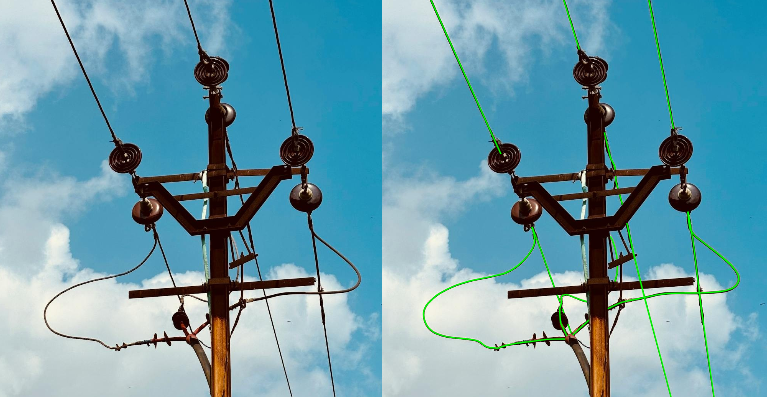
Polyline is a tool for creating an open line, used to annotate objects where the path or structure is important, but a closed contour is not required. For instance, polylines are used for annotating roads, route boundaries, or structural lines such as electrical wires or rivers. Each polyline point is added manually, forming a sequential path.
Tasks for Polygon and Polyline
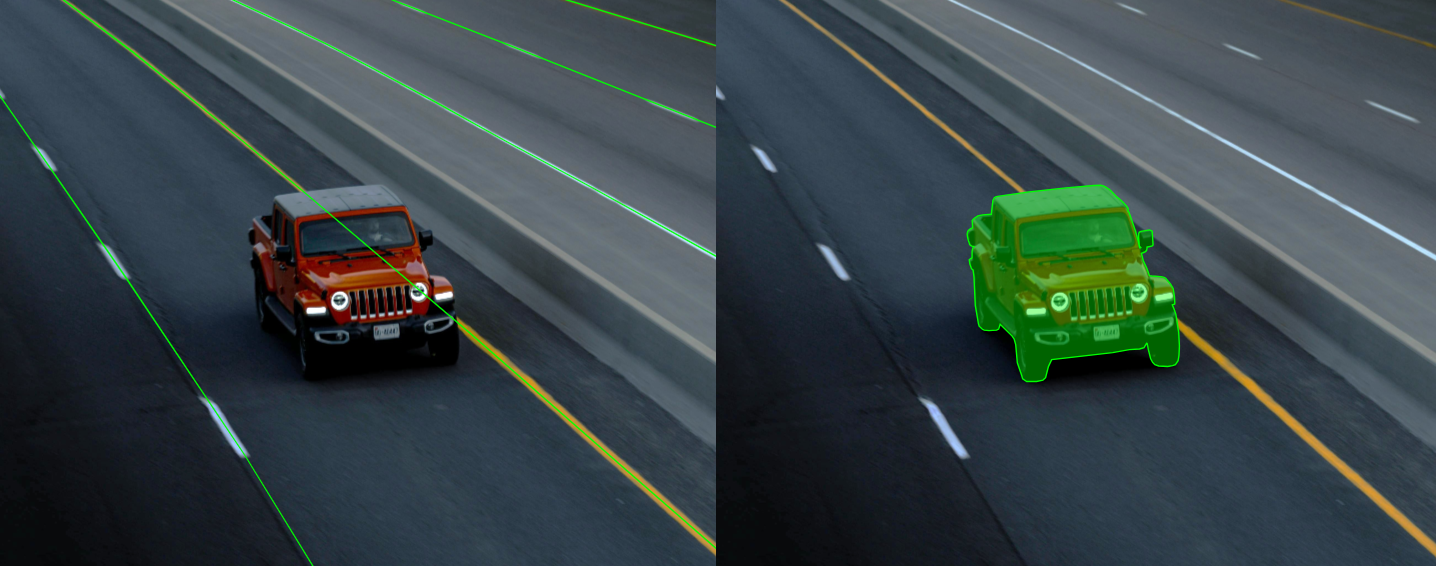
Different tasks - different tools: Polygon for shape, Polyline for structure.
Polygon
The Polygon tool was designed for tasks requiring high precision in describing object boundaries. Rectangular bounding boxes are not always suitable, especially for objects with complex shapes such as animals, plants, or items with multiple angles. The polygon tool allows you to:
- Eliminate unnecessary background.
- Capture only the essential details of the object.
- Improve model accuracy for tasks where pixel-level precision is crucial, such as object segmentation.
Polyline
The Polyline tool is used for tasks requiring the annotation of paths, routes, or lines. This tool is indispensable for describing structural objects that are not solid figures. Examples include:
- Tracing roads or road markings in navigation systems.
- Defining boundaries of fields or territories.
- Annotating power lines. Polyline is essential where the structure matters, not the area of the object.
Efficiency of Polygon and Polyline
Polygon
Advantages:
- High precision: Enables detailed descriptions of complex object shapes.
- Minimizes background: Excludes unnecessary pixels, improving model training.
- Flexibility: Suitable for any objects, regardless of their shape or size.
Limitations: - Time-consuming: Annotating complex objects takes more time than using bounding boxes.
- Challenging for large datasets: The process becomes labor-intensive for large datasets.
Polyline
Advantages:
- Ideal for structural objects: Perfect for linear objects such as roads, routes, or building outlines.
- Ease of use: Drawing lines takes less time than detailed polygon annotations.
Limitations: - Cannot describe areas: Unsuitable for tasks requiring the complete shape of an object.
- Limited application: Used only for objects with linear structures.
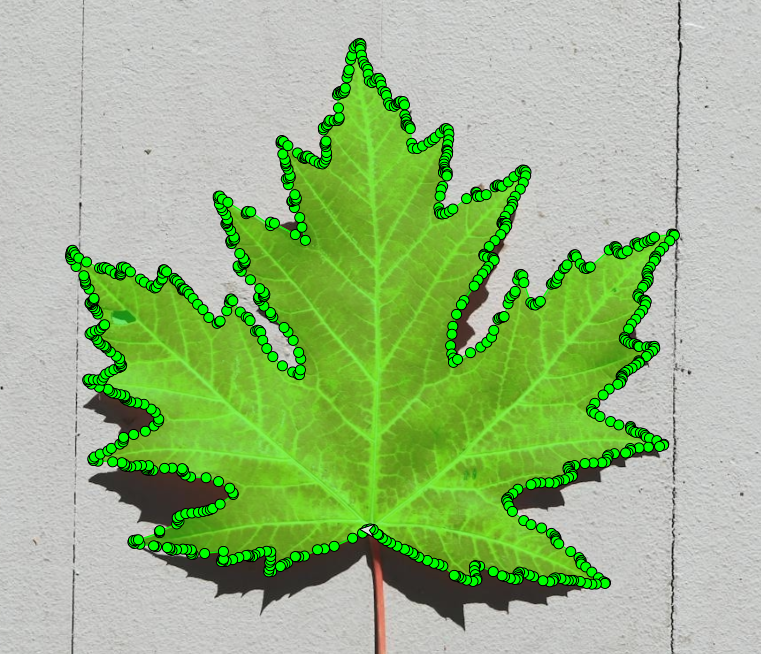
Polygon Example: Annotating a Tree Leaf with Jagged Edges
In plant classification tasks, annotators often need to mark individual leaves that have sharp, uneven edges. Using a bounding box would include too much irrelevant background and lose key features like shape and edge curvature.
Why Polygon works: It allows precise capture of the object’s true outline, improving model accuracy where pixel-level details matter.
Trade-off: Time-consuming to annotate, especially across large datasets.
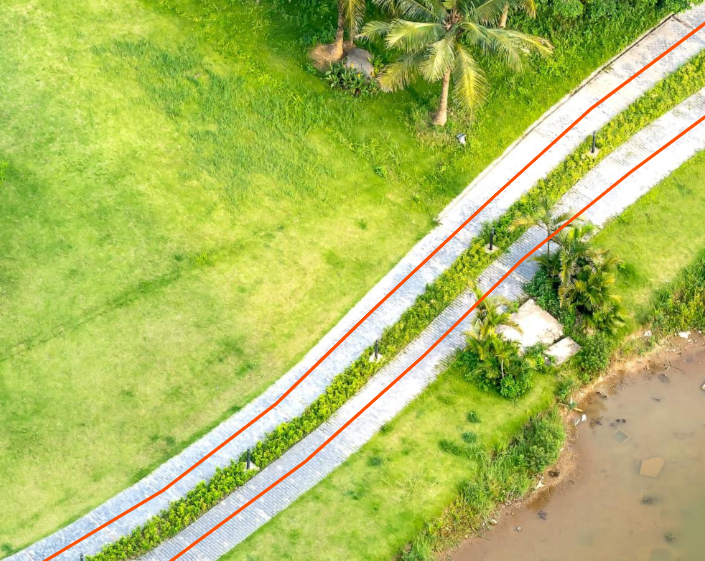
Polyline Example: Mapping a Pedestrian Path on Aerial Images.
For city navigation datasets, annotators draw paths along walkways, roads, or trail networks. The goal is to mark the direction and course of travel, not the entire area.
Why Polyline works: It efficiently traces the route with minimal effort, ideal for large-scale projects.
Limitation: Cannot describe area or full shape, suitable only for linear features.
Examples of Use in Popular Datasets
Polygon
- COCO (Common Objects in Context)
- Use of Polygons: COCO includes polygon annotations for object segmentation tasks. This enables precise outlining of object boundaries, crucial for instance segmentation.
- Type of Annotations: Instance Segmentation (polygons for each object).
- Examples of Objects: People, cars, animals, household items.
- Number of Images: Approximately 330,000 images, with over 200,000 annotated with polygons.
- Applications:
- Development of models for Mask R-CNN and other segmentation methods.
- Accurate annotations of complex objects that overlap.
- Feature: Polygons are annotated with high precision, including intricate shapes and objects with numerous details.
- Cityscapes
- Use of Polygons: Cityscapes includes annotations using polygons for semantic and instance segmentation in urban environments.
- Type of Annotations: Instance Segmentation and Semantic Segmentation (polygons for objects and regions).
- Examples of Objects: Cars, pedestrians, buildings, roads, trees.
- Number of Images:
- 5,000 images with fine annotations.
- 20,000 images with coarse annotations.
- Applications:
- Autonomous driving, requiring precise identification of urban infrastructure.
- Urban scene analysis with accurate delineation of object boundaries.
- Feature: Highly detailed polygons, especially in complex scenes with numerous objects, such as intersections.
- Pascal VOC (Visual Object Classes)
- Use of Polygons: Pascal VOC provides polygons for object segmentation tasks. Though smaller than COCO or Cityscapes, it remains valuable for basic tasks.
- Type of Annotations: Semantic Segmentation (polygons for objects).
- Examples of Objects: Animals, vehicles, furniture, people.
- Number of Images: 11,530 images.
- Applications:
- Training models for basic object segmentation.
- Annotating objects in small datasets.
- Feature: Simplicity and smaller data volume allow for quick testing of models on polygonal annotations.
Polyline
- Cityscapes
- Polylines in this dataset are used for annotating road markings, sidewalks, lanes, and object boundaries.
- Object Classes: Roads, sidewalks, markings, buildings, boundaries of road elements.
- Number of Images:
- 5,000 images with fine annotations.
- 20,000 images with coarse annotations.
- Features: Suitable for autonomous driving tasks. Polylines are annotated with high precision, allowing models to effectively analyze urban scenes.
- BDD100K (Berkeley DeepDrive)
- Polylines are used to annotate road markings, lanes, and road boundaries.
- Object Classes: Road markings, lanes, boundaries of objects.
- Number of Images: Over 100,000 images.
- Features: A large dataset with diverse road scenes, including various weather conditions and times of day.
- OpenLane
- Polylines are used to annotate lanes, motion trajectories, and boundaries.
- Object Classes: Lanes, road markings, boundaries of objects.
- Number of Images: Approximately 200,000 images.
- Features: Specialized for autonomous driving tasks with detailed annotations of lanes.
Conclusion
Polygon and Polyline are key annotation tools, enabling tasks where precision and structure are critical. Polygon is ideal for objects with complex shapes that require detailed segmentation, while Polyline is effective for linear structures such as roads or boundaries. These tools are actively used in modern datasets like COCO and Mapillary Vistas, underscoring their importance for training machine learning models. When choosing an annotation tool, it is essential to consider the specific task to ensure maximum accuracy and efficiency.

.svg)





.svg)
.png)

.png)


