


Hello, and welcome! Today, we’re diving into one of the most essential tools in data annotation for computer vision—bounding boxes. Whether it’s detecting objects in images, classifying them, or tracking their movement in videos, bounding boxes form the foundation of many machine learning models. But what makes them so effective, and why are they still widely used despite more advanced techniques? Let’s find out.
What is the Bounding Box?
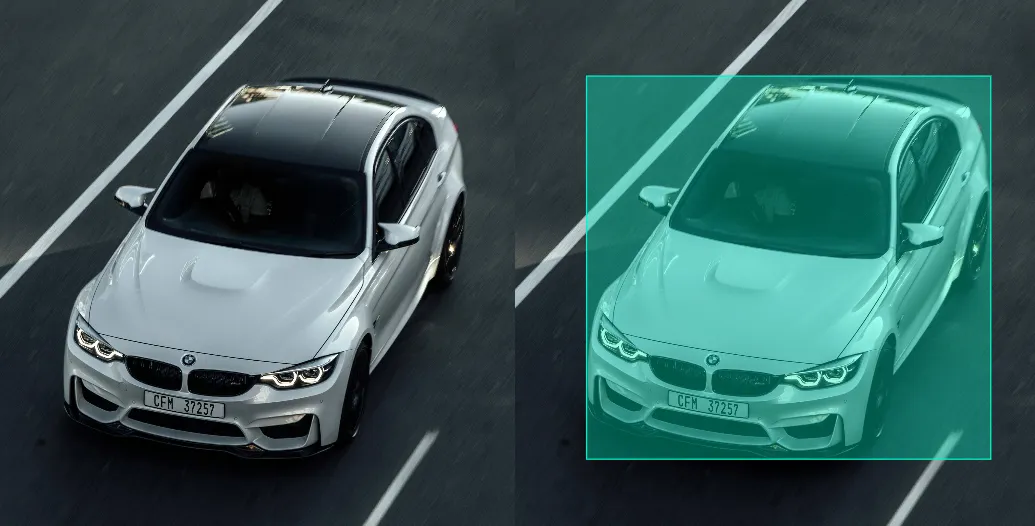
A bounding box is a fundamental data annotation tool used in computer vision tasks. It is a rectangular frame that encompasses an object in an image or video stream, defining its location and size. A bounding box is created using two or four coordinates, making the annotation process quick and convenient. This method is widely applied in training machine learning models for object detection, classification, and tracking tasks. Despite its simplicity, a bounding box provides sufficient accuracy for most tasks.
Why is the Bounding Box effective?
Bounding box is popular and effective for the following reasons:
- Speed and simplicity. You can build a bounding box in a few seconds using only 2 points: the upper left and lower right corners of the frame. This makes the annotation process faster and adaptable to large amounts of data, reducing the cost of partitioning.
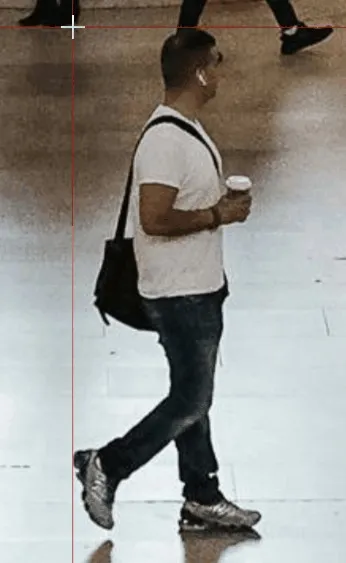
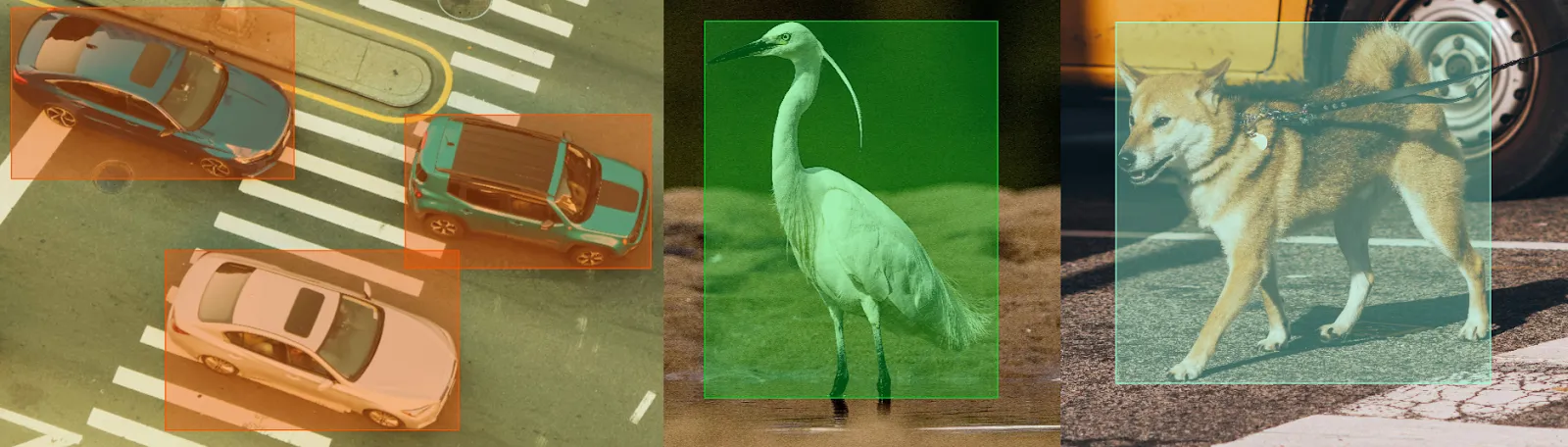
- Suitable for most objects. Many objects in images can be framed by a rectangle with minimal loss of context, allowing models to adequately recognize and interpret objects. For example, cars, people, animals, and objects can be easily highlighted with a rectangular frame, allowing the model to be accurately trained.
- Reduced computational complexity. Bounding box requires less data to describe an object than, for example, contour or mask partitioning. This reduces the load on the model training process and allows faster processing of datasets while maintaining high accuracy in object classification and detection.
Bounding boxes are great for tasks where it is important to simply select an object without accurately outlining its shape, which is especially useful for training models under time and resource constraints.
Using the Bounding Box
Bounding box is actively used for many tasks, optimizing its application in complex cases.
Bounding box is most often used for:
- Object detection and classification. Bounding box helps to accurately label an object and save its characteristics such as location and size. This allows you to train models to find and classify objects in images and videos, which is important for automated security, object recognition and navigation systems.
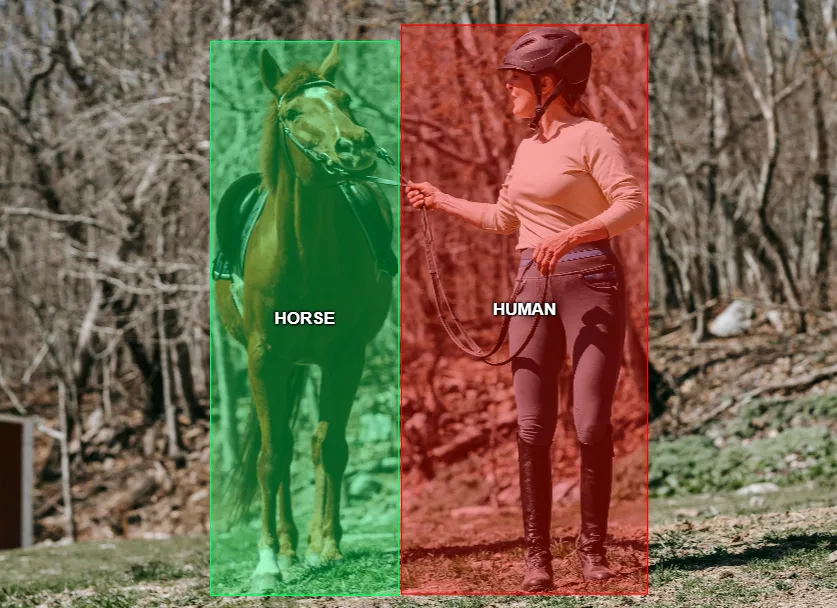
- Motion analysis and tracking. In the task of tracking objects in video streams, bounding box is used to determine the coordinates of the object in each frame. This allows models to identify objects and track their motion. It is important to minimize the inclusion of background so that the model can extract important characteristics of the object, such as its contours and texture, and use this data for subsequent identification.
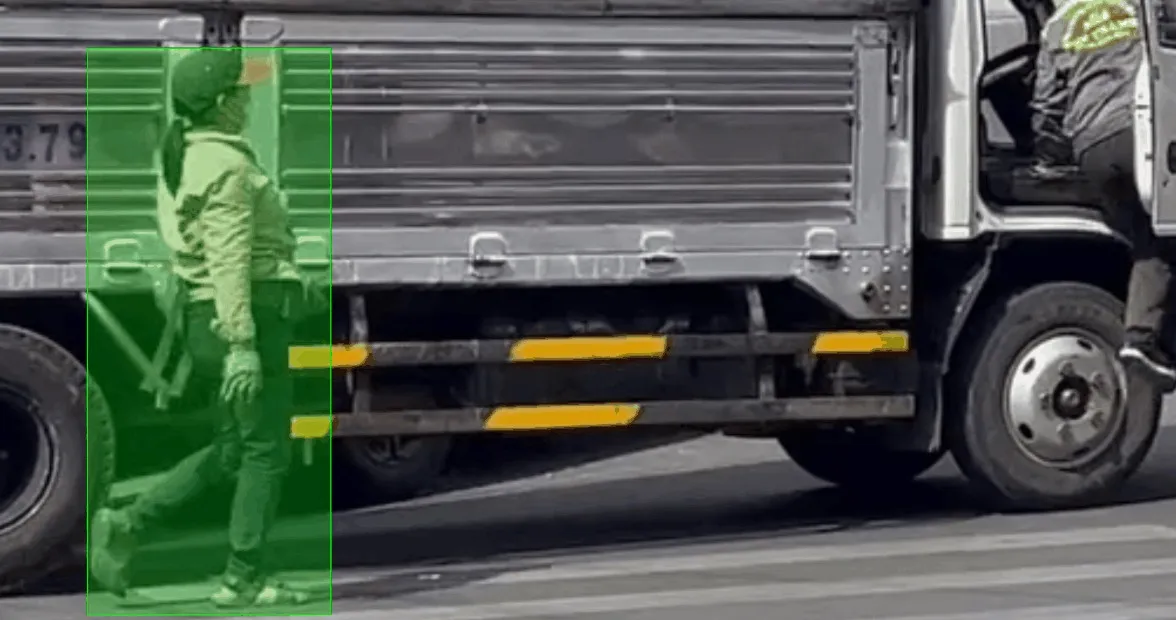
Contemporary Challenges and Alternatives to Bounding Box
Bounding box is a universal tool, but it is not without its limitations. This is primarily true for objects with irregular shapes ( for example, animals or trees), where a simple rectangular box may capture too much unnecessary background. In such cases, models may require more detailed annotation, such as mask segmentation or segmentation using polygons, to improve accuracy. Using a mask or polygon to precisely draw the outline of an object allows you to capture only the object and get rid of unnecessary background.
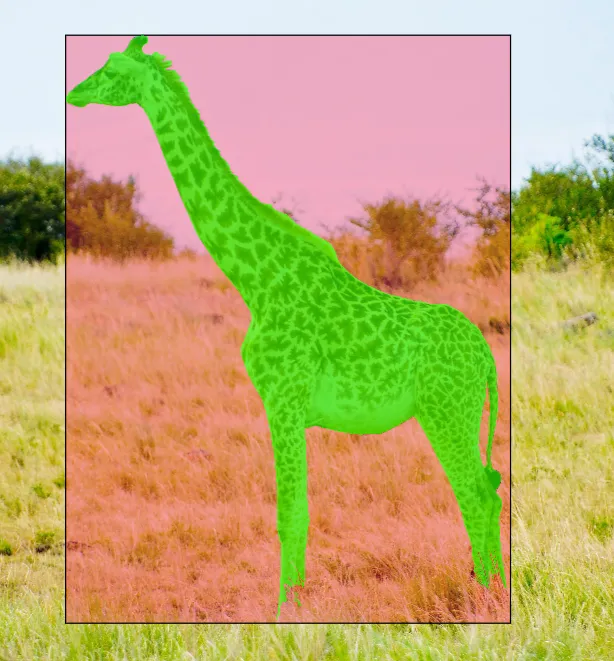
Black - bounding box
Red - captured background by bounding box
Green - mask segmentation
However, for massive detection tasks, bounding box remains the standard because it offers a balance between simplicity and sufficient accuracy. It is convenient for data-intensive annotations, such as in observation systems or for training object recognition models.
Examples of successful usage
Bounding box is widely used in large datasets for computer vision tasks, especially for object detection, classification and tracking. These datasets are important for model training because they provide a variety of annotated images that allow models to learn object recognition efficiently. Here are some of the best known datasets where bounding box is used:
COCO (Common Objects in Context)
The COCO dataset is one of the most popular in computer vision. It includes annotations for over 300,000 images and supports several types of partitioning, including bounding box and object segmentation. COCO includes objects from more than 80 categories, making it a versatile tool for training models that solve detection, segmentation, and even image description problems. COCO provides annotations for objects in the natural environment, and the bounding box allows models to accurately locate objects. This dataset is used for many competitions and scientific research, as it includes complex scenes with overlapping and interacting objects.
Pascal VOC (Visual Object Classes)
Pascal VOC was one of the first datasets to make extensive use of bounding boxes for annotation. It contains images with objects of 20 classes and offers annotation in the form of bounding boxes and masks. Pascal VOC has played a significant role in the development of object recognition algorithms as it includes scenes of varying complexity, from simple to highly loaded, allowing models to learn to select objects under near real-world conditions. This dataset is still used as a basis for comparing models and testing object detection methods, although it is smaller in volume compared to COCO.
ImageNet
ImageNet is one of the largest and best known datasets, covering thousands of object categories. In addition to classification, ImageNet provides bounding boxes for most categories, which allows it to be used in object detection and localization tasks. The ImageNet dataset is used as a standard for training and testing models, and while the primary focus is on classification, the bounding box allows models to be trained to accurately localize objects. This approach is used for tasks where it is important to both recognize an object and accurately indicate its location in the image.
Open Images Dataset
Open Images is another large dataset from Google, containing more than 9 million images and hundreds of thousands of annotations in bounding box format. The dataset includes over 600 object classes and provides annotations not only in bounding box format, but also as masks for segmentation and relationships between objects (e.g., interactions between people and objects). This makes Open Images useful for training models that need not only to identify an object, but also to understand its environment and interaction with other elements in the scene.
In summary, a bounding box is a simple but effective tool that allows you to quickly and accurately label objects in images and videos. Its application is an important part of the process of creating high-quality datasets. Given the current and future challenges in AI and computer vision, bounding box is likely to remain a key element in data annotation, striking a balance between simplicity, accuracy and speed of annotation.

.svg)





.svg)
.png)

.png)


